Creating a HydroServer User Account
While you can navigate to a HydroServer instance and interact with any metadata and data that have been made public, creating a workspace or becoming a collaborator on a workspace requires creating a user account. HydroServer enables multiple options for user account creation that are controlled by the administrator of the HydroServer instance. The default options are using simple authentication (an email as a username and a chosen password) or to use a Google account or ORCID to create an account.
When you go to a HydroServer instance, you can click the 'Log in' button in the top right corner. You will be taken to the Login page:
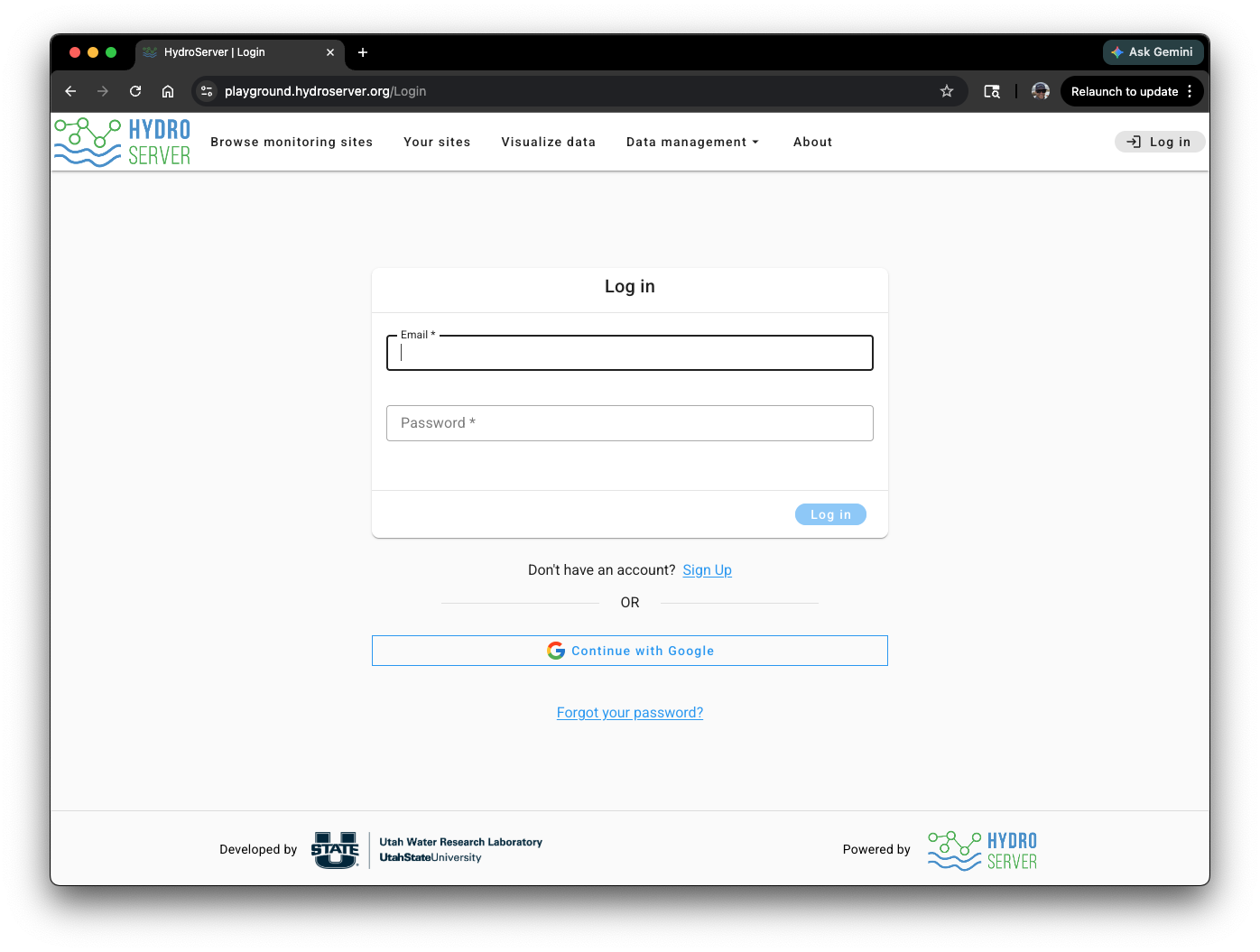
If you don't have a user account, you can click the 'Sign up' link under the 'Log in' box, or you can click the link to 'Continue with Google' or ORCID, depending on which options the HydroServer administrator has enabled.
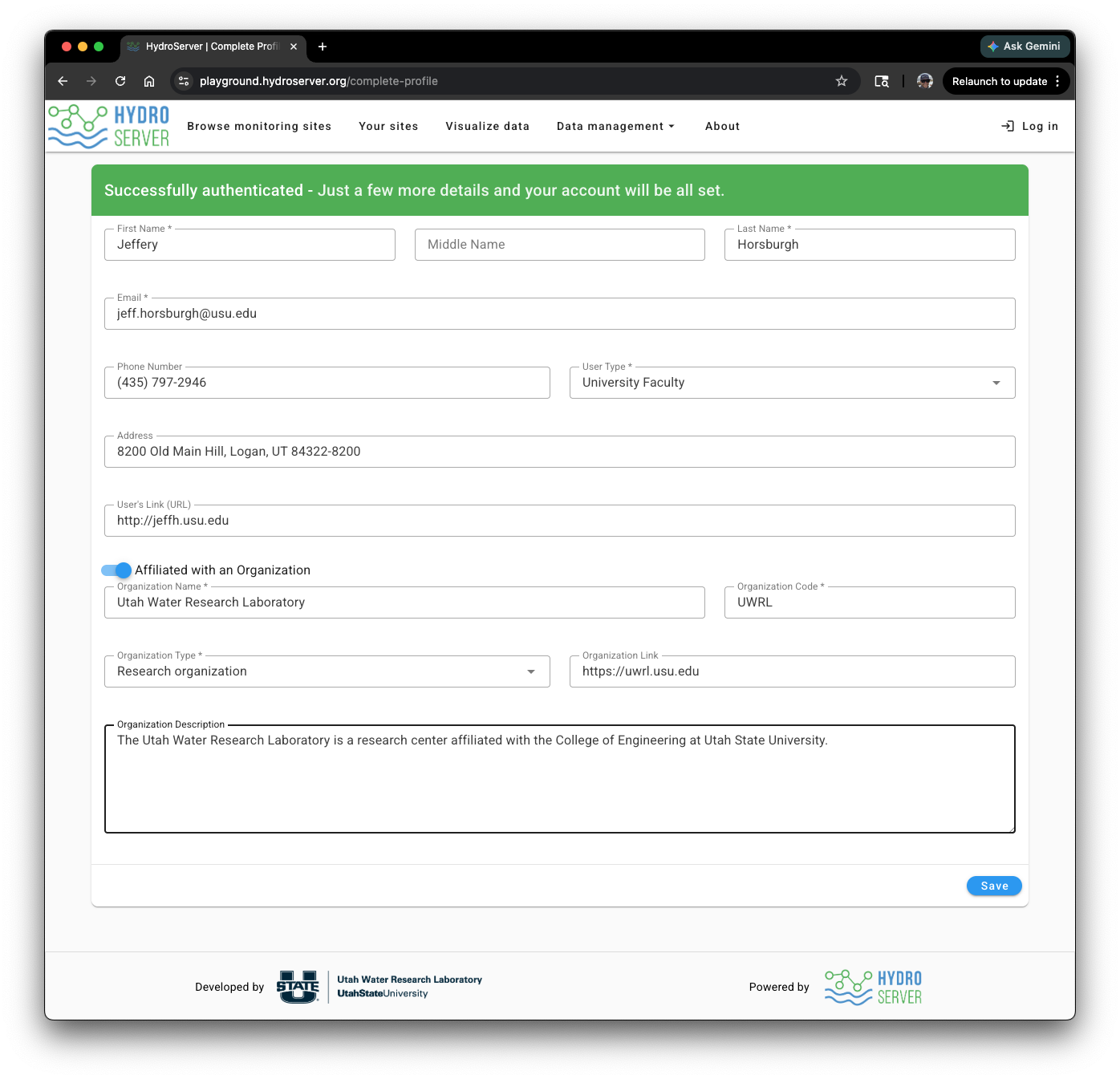
Once you make a selection, you will be taken to the account creation form. We recommend that you fill out the user information, including the organization information if you are affiliated with an organization.
Click the 'Save' button at the bottom right of the account creation page to set up your account.
As a last step, an email verification code will be sent to your email address. Enter that verification code into the 'Verify Your Email' form in HydroServer and click the 'Verify Code' button to finish.