Managing Access Control
HydroServer's access control is role-based and set at the Workspace level. The person who creates the workspace is automatically the owner. That user can then share the workspace with any other HydroServer user as a collaborator. Unless workspace creation has been disabled by a HydroServer administrator, users can create multiple workspaces and can be a collaborator on any number of workspaces.
Workspace and Content Ownership
Ownership of resources in HydroServer is user-centric, meaning that individual user accounts own the sites, metadata, and datastreams within a workspace. A user may be associated with an organization, but it is the user's account that maintains ownership of and control over the data.
All resources in HydroServer (monitoring sites, metadata, datastreams, observations) are handled within the context of a workspace. When you want to create a new site, you first have to decide which workspace it will belong to. It will inherit all of the permissions of that workspace.
User Roles
Each collaborator on a workspace is assigned a role. A role is a set of permissions configurable at the resource level. By default, HydroServer deploys with owner, editor, and viewer roles, but an administrator can configure additional roles if needed. The following table gives an overview of permissions associated with HydroServer's primary roles:
| Permission | Owner | Editor | Viewer |
|---|---|---|---|
| Rename, transfer, edit privacy of workspace | Yes | No | No |
| Invite new workspace collaborators | Yes | Yes | No |
| Create, update, delete sites, datastreams, and metadata | Yes | Yes | No |
| Set up SDL to stream observations to datastreams | Yes | Yes | No |
| Set up Job Orchestration System tasks | Yes | Yes | No |
| View public and private data within workspace | Yes | Yes | Yes |
Adding Collaborators to a Workspace
To add a collaborator to a workspace, you should first navigate to the 'Your Sites' page and expand the workspaces by clicking the 'Manage workspaces' button. Click the blue lock icon in the right column for the workspace. This will launch the 'Workspace access control' window.
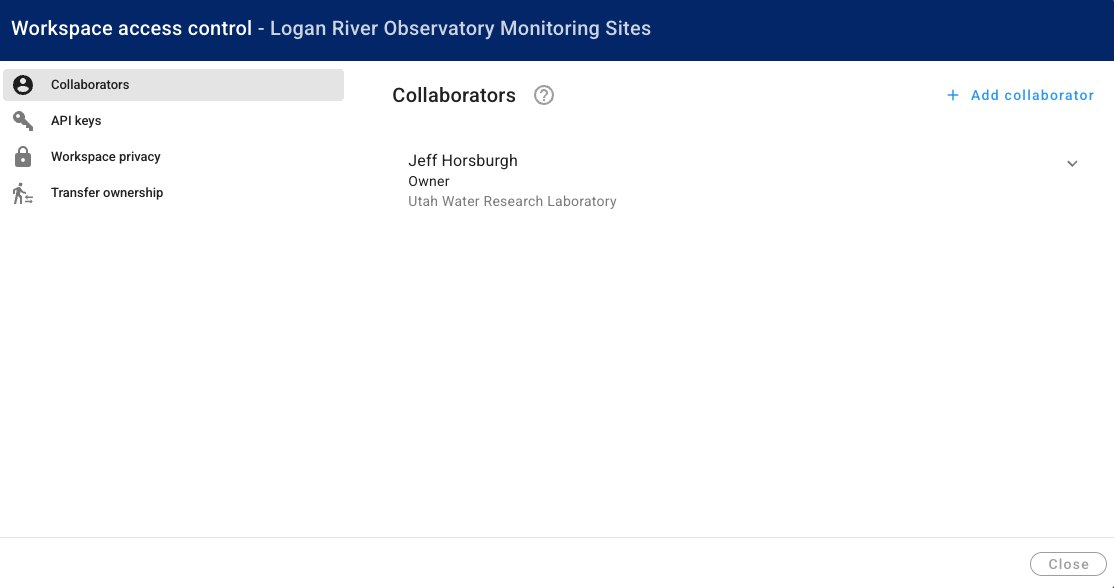
If your workspace is new and you are the owner, you will be the only collaborator in your workspace. To add a new collaborator, click on the 'Add collaborator' link at the top right of the window. Enter the collaborator's email address and choose the role that collaborator will have for the workspace (either 'Editor' or 'Viewer'). Clicking the 'Add collaborator' button will add them as a collaborator to the workspace.
NOTE: A person must have a HydroServer user account affiliated with their email address before you can add them as a collaborator on a workspace.
To edit a user's role or remove a collaborator from a workspace, you can click the down arrow next to their name in the collaborators list and click the 'Edit role' or 'Remove collaborator' buttons.
API Keys
Sometimes you want to provide access to a workspace without using a username and password. This is especially true when using code for working with a workspace. It is a security risk to embed your username and password in code. For this reason, HydroServer enables you to create API keys for working with HydroServer's APIs.
API keys are unique codes that let remote systems connect to and interact with HydroServer. You can create API keys and assign them the minimum permissions they need to do the job (e.g., read only, or just for loading data, etc.).
To create an API key, click on the 'API Keys' link in the left column of the Workspace Access control window. Then, click the 'Create API key' button at the top right of the form. Give your API key a name and description and assign it a role.
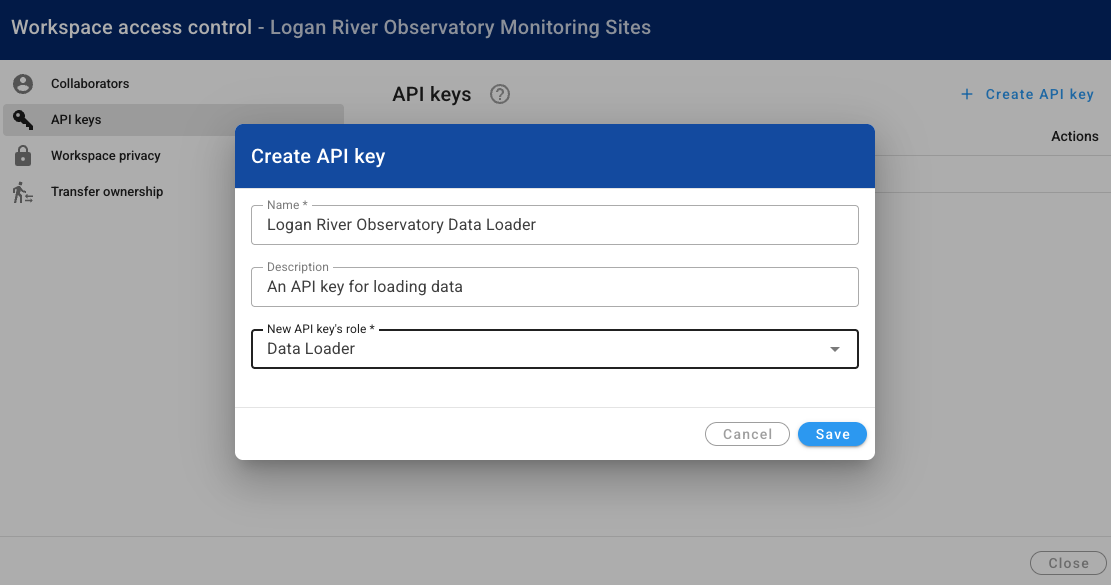
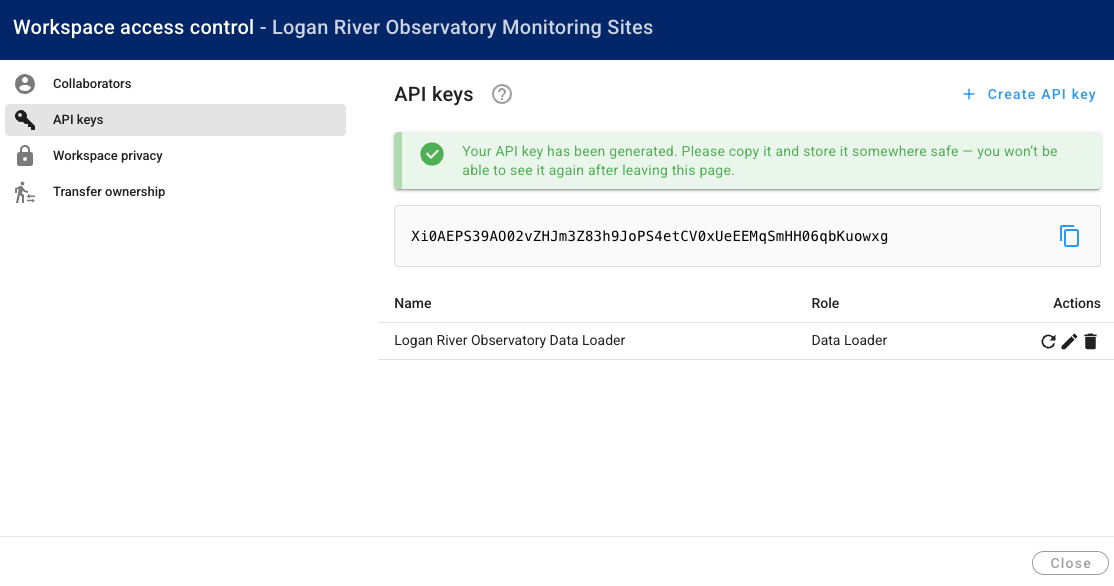
When you first create an API key, it will be shown to you in the 'Manage access control' window. Make sure you copy it and keep it in a safe space. This is the only time you will see it. If you lose the value of your API key, you will have to re-generate it or generate a new one.
Granular Data Visibility
In addition to HydroServer's workspace level, role-based access control, workspace collaborators can control several visibility settings that control what public HydroServer users see. Public users are those who are not logged in or those who are logged in but not a collaborator on a workspace.
By default, workspaces, sites, and datastreams are public. However, each has a visibility setting that can make them private.
Workspace Privacy: This setting determines whether a workspace is private or public. If your workspace is private, all sites, datastreams, and associated metadata will only be accessible to the workspace owner and collaborators. You can set the privacy of your workspace when it is created or using the 'Workspace access control' window accessed by clicking on the blue lock icon next to the workspace in the manage workspaces table.
Site Privacy: This setting determines whether your monitoring site is private or public. If you set your site to private, it means that only the workspace owners and collaborators can view the site and all associated datastreams through the website or API. This is like having a closed folder that only selected people can open. This allows users to set some sites as public and others as private within a public workspace. Site privacy can be set when creating a site or by clicking the 'Access control' button on the site's landing page.
Datastream Privacy: This setting is about who can see a specific datastream at your site. Even if your site is public, you might want to keep certain datastreams of that site private. When this setting is on, it means that only the workspace owners and collaborators can view this particular datastream's details and data. Datastream privacy can be set using the buttons to the right of the datastream on the site's landing page.
Datastream Data Visibility: This is a convenience setting for controlling visibility of data in the Data Management Web Application. When a datastream is public, its metadata will be visible to the public. However this setting enables datastream observations to be hidden. Note: Observations can still be retrieved by anyone through the SensorThings API regardless of this setting.
These privacy settings work in a hierarchical, conditional manner:
If you set the Site Privacy to private (thing.is_private), then both Datastream Visibility (datastream.is_visible) and Datastream Data Visibility (datastream.is_data_visible) will automatically be set to private as well. However, if the site is public, you can still control the visibility of each datastream and its data individually.