
Creating and Managing Metadata for Monitoring Sites
The Data Management Web App provides straightforward user interfaces for creating the metadata for monitoring sites. Once metadata for a site and the datastreams measured at that site have been set up, observational data can be loaded into the site's datastreams.
Creating a Monitoring Site
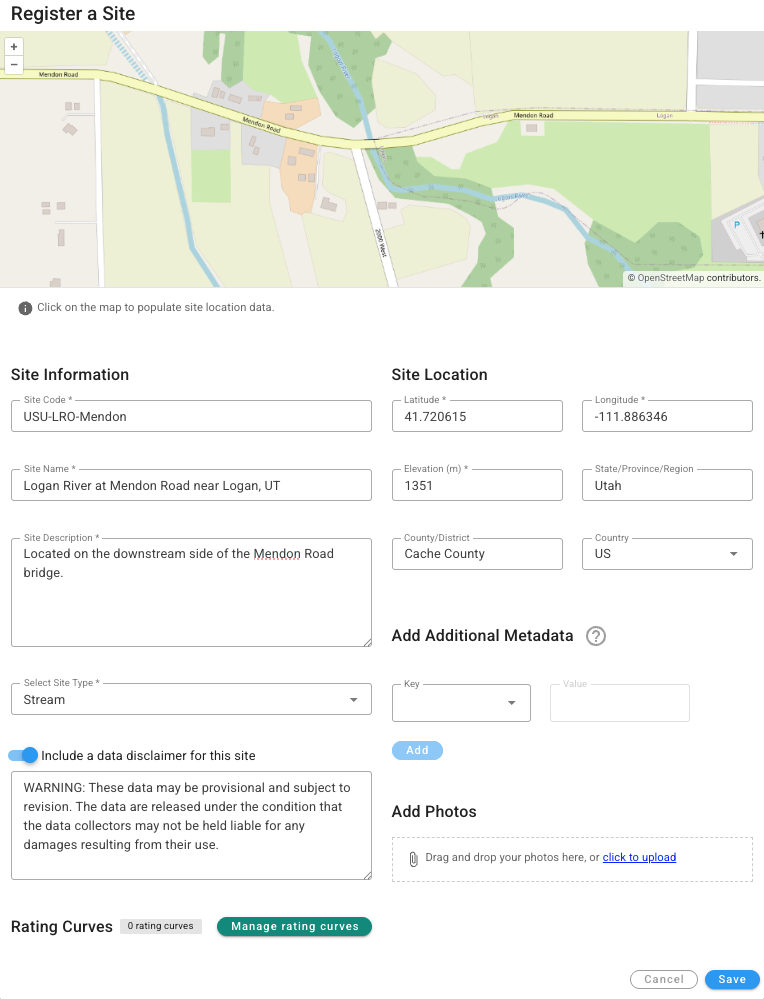
Creating and managing monitoring sites is done on the 'Your sites' page in the Data Management App. Initially, a new workspace will be empty with no sites. To create a new site, click on the 'Register a new site' button at the top right of the sites table. This will launch the 'Register a Site' window.
In this form, you can create the basic metadata for a monitoring site. Type or select the following attributes on the form:
- Site Code: A brief and unique text code identifying your site.
- Site Name: A longer text name for your site.
- Site Description: A description of your monitoring site.
- Site Type: A descriptive type for your site.
You can choose whether you want to include a data disclaimer to be displayed above the table of datastreams on your site's landing page. Default text is provided, but you can edit it if you wish
For the Site's location, you can zoom in on the map and click on the site's location. This will automatically populate the latitude, longitude, elevation, state, county, and country (in the U.S.). You can also type those attributes in if you know them.
With this minimum metadata, you can click the 'Save' button to save the monitoring site.
Additional Metadata
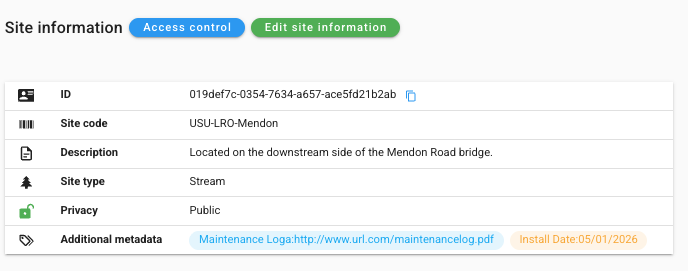
The basic metadata for a monitoring site come from the Observations Data Model (ODM). However, you may have additional metadata elements you want to add to your site. You can use the 'Add Additional Metadata' functionality to add "Tags" to your site. Each tag has a key and a value. For example, the following key-value pair would indicate that this site has an install date of May 1, 2026.
Key: "Install Date" Value: "05/01/2026"
Tags are displayed in the site metadata on the landing page for the site. They can be simple key-value pairs as above, or, the value could be a URL pointing to a document with additional site details. For example:
Key: "Maintenance Log" Value: "http://www.url.com/maintenancelog.pdf"
Where URLs are used in the Value element, they are hyperlinked and made clickable on the site's landing page.
Photos and File Attachments
You can also attach photos to your monitoring site. You can either drag and drop photo files onto the upload area on the form, or you can use the 'click to upload' link. You can choose any number of photos and they will be displayed on the site landing page next to the metadata for the site. Photos can also be added later by clicking on the 'Edit site information' on the site's landing page.
Deleting a Site
You can delete a site by navigating to its landing page and clicking on the 'Delete site' button at the top right of the page. This will open a dialog warning you that this action will delete the site and all associated datastreams and observations for all users of HydroServer.
WARNING: Deleting a site is permanent. If you delete a site, all of the data associated with that site will also be deleted.