
Export Data
The Data Management Web App provides quick links to export observation values for datastreams in comma separate values (CSV format).
Download from the Site Landing Page
On the landing page for a monitoring site, you can scroll the list of datastreams to find the one you want and then click on the Actions button (the three vertical dots) and select 'Download data'
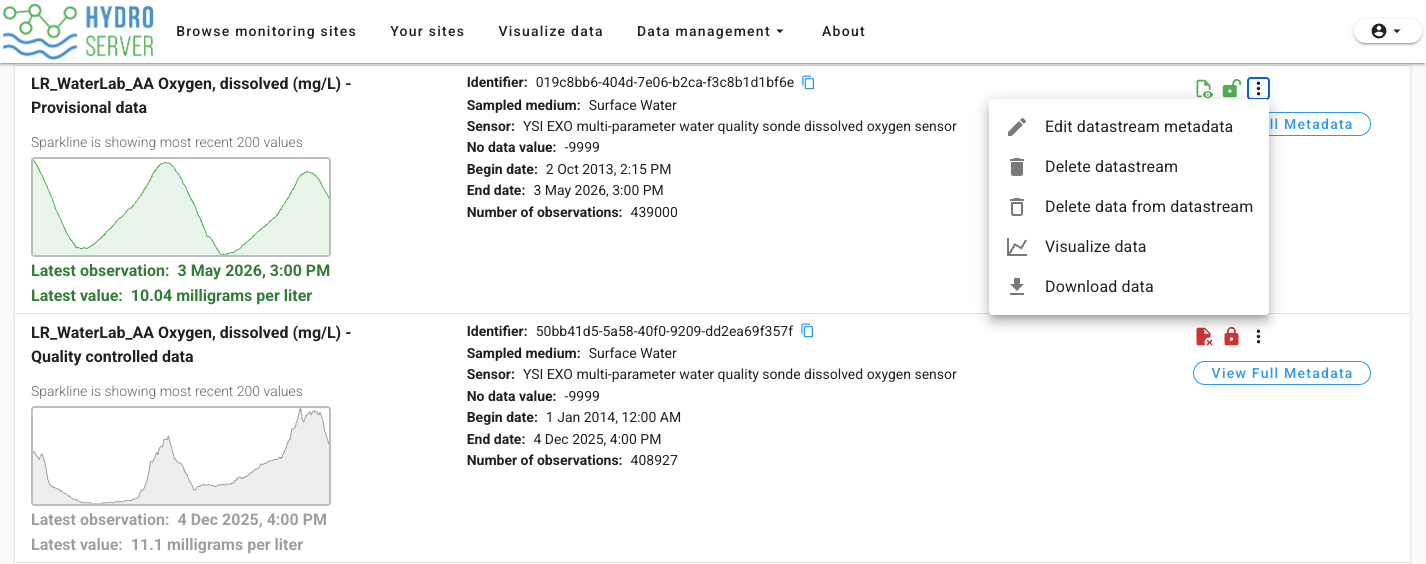
Selecting this option will generate and download a CSV file with the observation values and metadata for the datastream.
Download from the Visualize Data Page
On the 'Visualize data' page, you can click select a datastream in the table at the bottom of the page and then click the 'Download selected' button at the top of the table. Or, you can click on a row in the table to display its metadata and then click on the 'Download' button at the top right of that form.
Download File Format
NOTE: HydroServer exports timestamps for data values in UTC. Users should localize the date/time values as needed for their analysis after downloading the data.
The CSV download file is named with the UUID of the datastream. It is formatted with a descriptive header at the top of the file containing the datastream's metadata. Each header line is prefixed with '#' as a quote character.
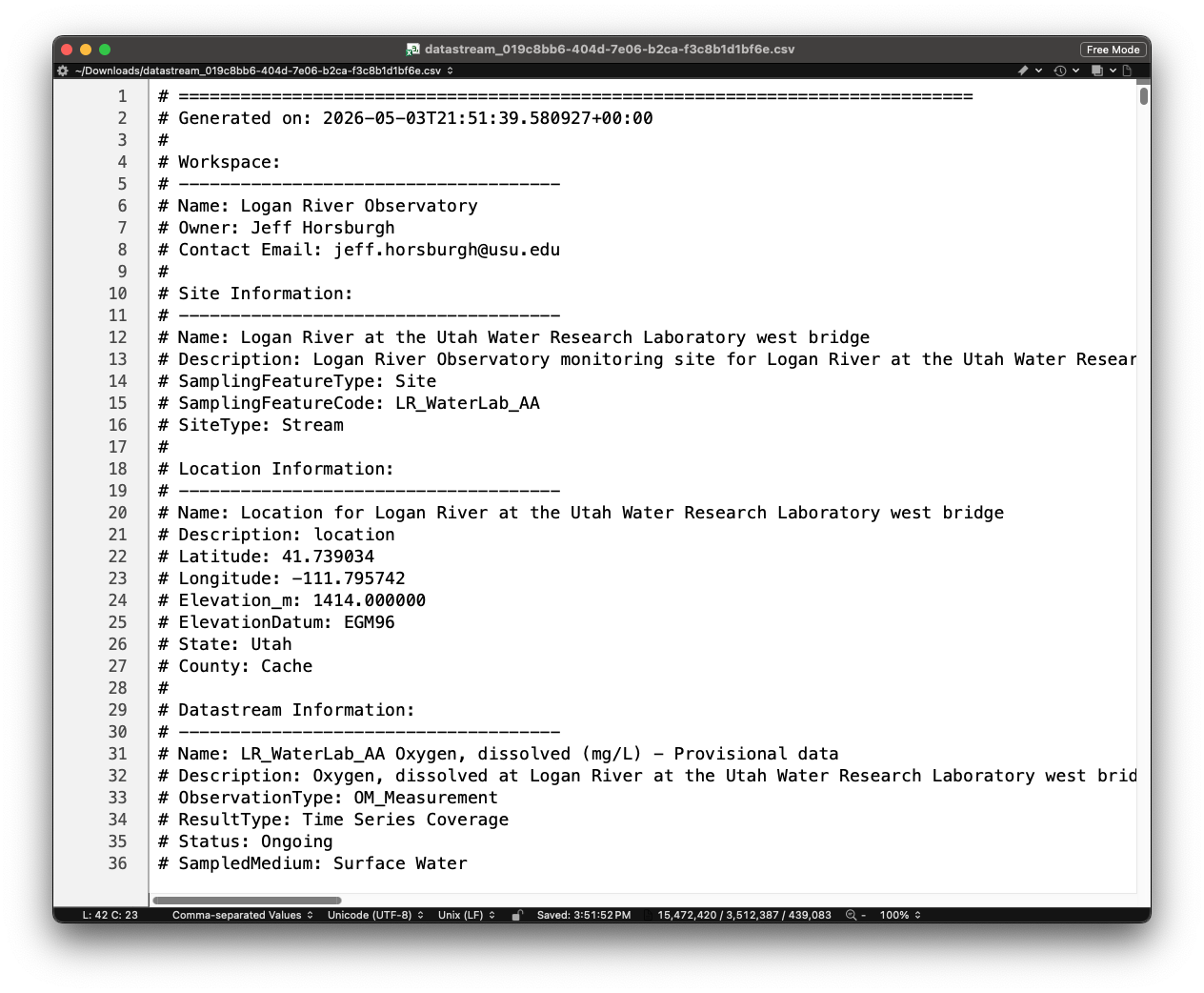
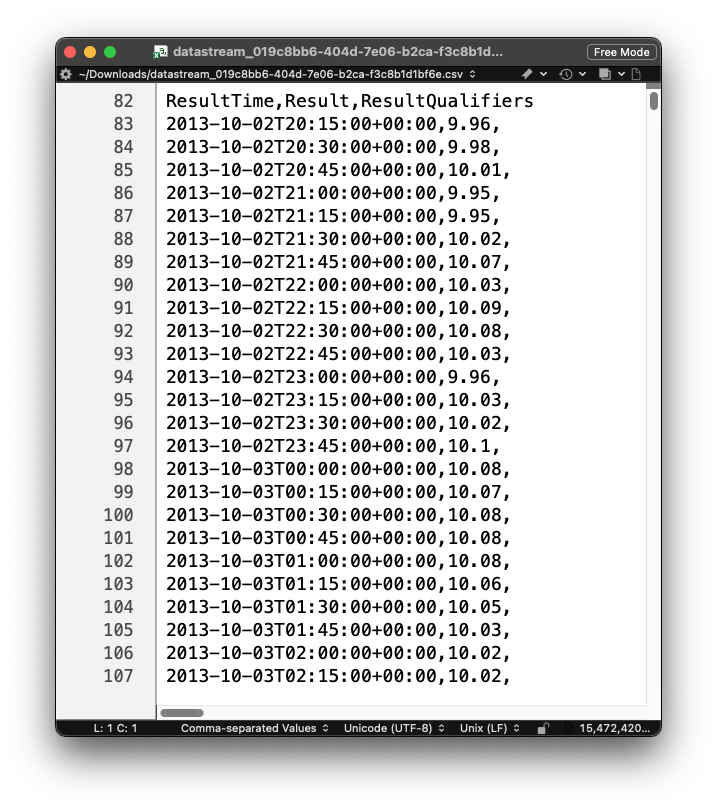
Observation values are exported as a simple CSV table with columns for the timestamp, numeric observation values, and any data qualifying comments:
Automated or Scripted Data Download
If you want to automate data retrieval or code data download, you should consult the sections in the documentation on using HydroServer's Python client hydroserverpy or using HydroServer's API (for other programming languages).