
Part 3: Setting up the Streaming Data Loader
Now that we have a site and datastream created, we're just about ready to load some data. There are many ways to load data in HydroServer which range from simply POSTing data via the API to setting up automated workflows. For this tutorial, we'll set up a simple automated workflow. We'll download the Streaming Data Loader desktop application and use it to extract a CSV file off your computer and into HydroServer.
Follow the install instructions at the following link to Install the Streaming Data Loader.
The Streaming Data Loader software is both a desktop app that allows you to map your source CSV files to be loaded to your target datastreams and the actual background process that automatically pushes updates to the datastream whenever new rows are appended to your CSV file. Once the app is installed, you'll be prompted to install the OS background process. Click the 'Install Background Process' button.
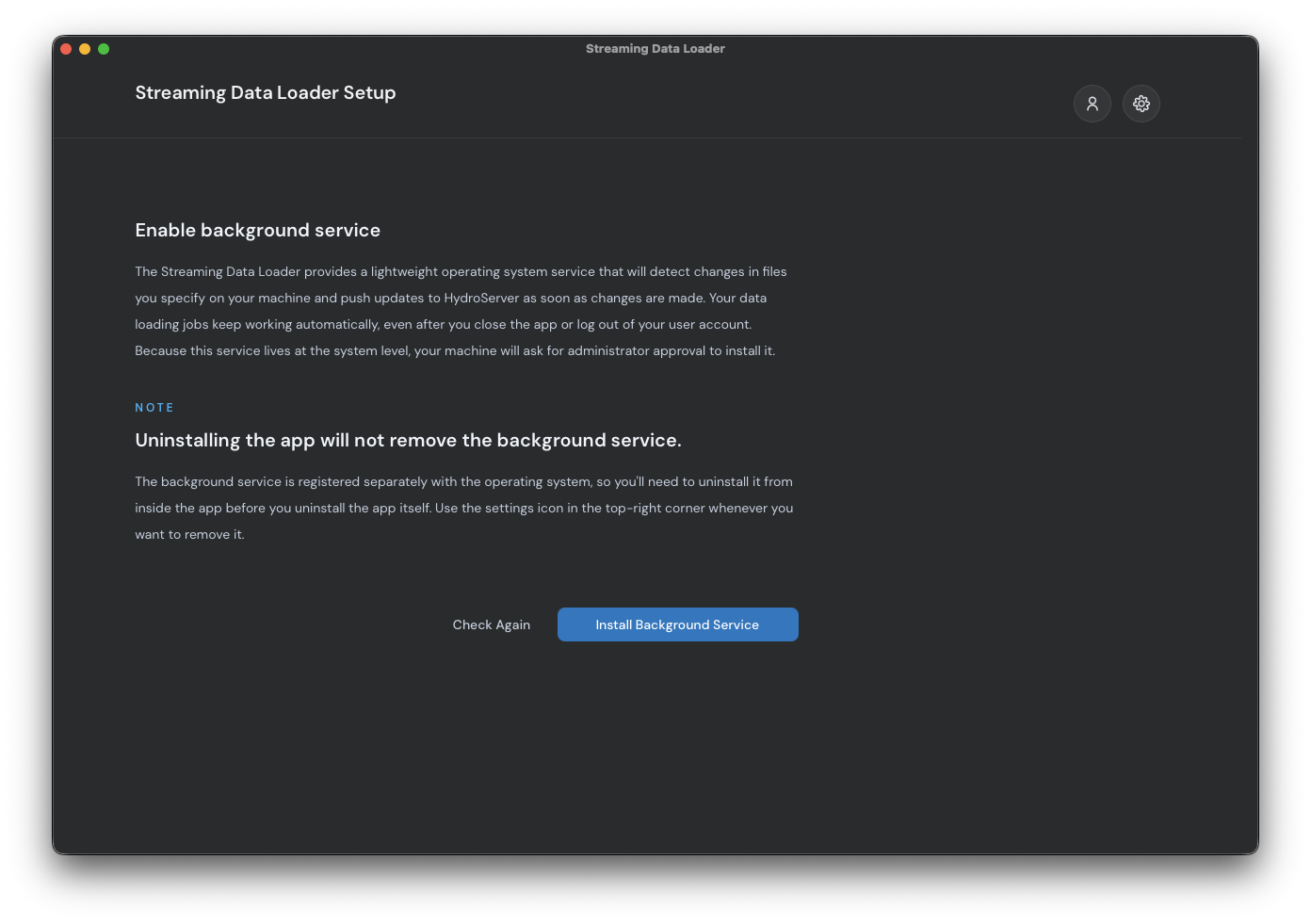
After the OS process has been successfully created, you'll be prompted to authenticate. You can either provide your username and password or you can create an API key. Creating an API key is recommended for production instances because the key restricts the types of actions that can be taken - and is therefore more secure and less prone to accidents than basic authentication.
If you're going with user name and password, click 'confirm' on the form and feel free to skip the next section. If you created your account via Google OAuth, you won't have a HydroServer password so you'll need to go the API key route, which we'll do next.

Create an API key
From the main navigation bar on playground.hydroserver.org, go back to 'Your sites'. Right below the map, click the 'Manage workspaces' button to display the workspace table if it's not already present. Find the table row with your workspace name and click the blue padlock icon in the 'actions' section. This will open the 'access control' modal. Click on 'API keys' on the left menu.
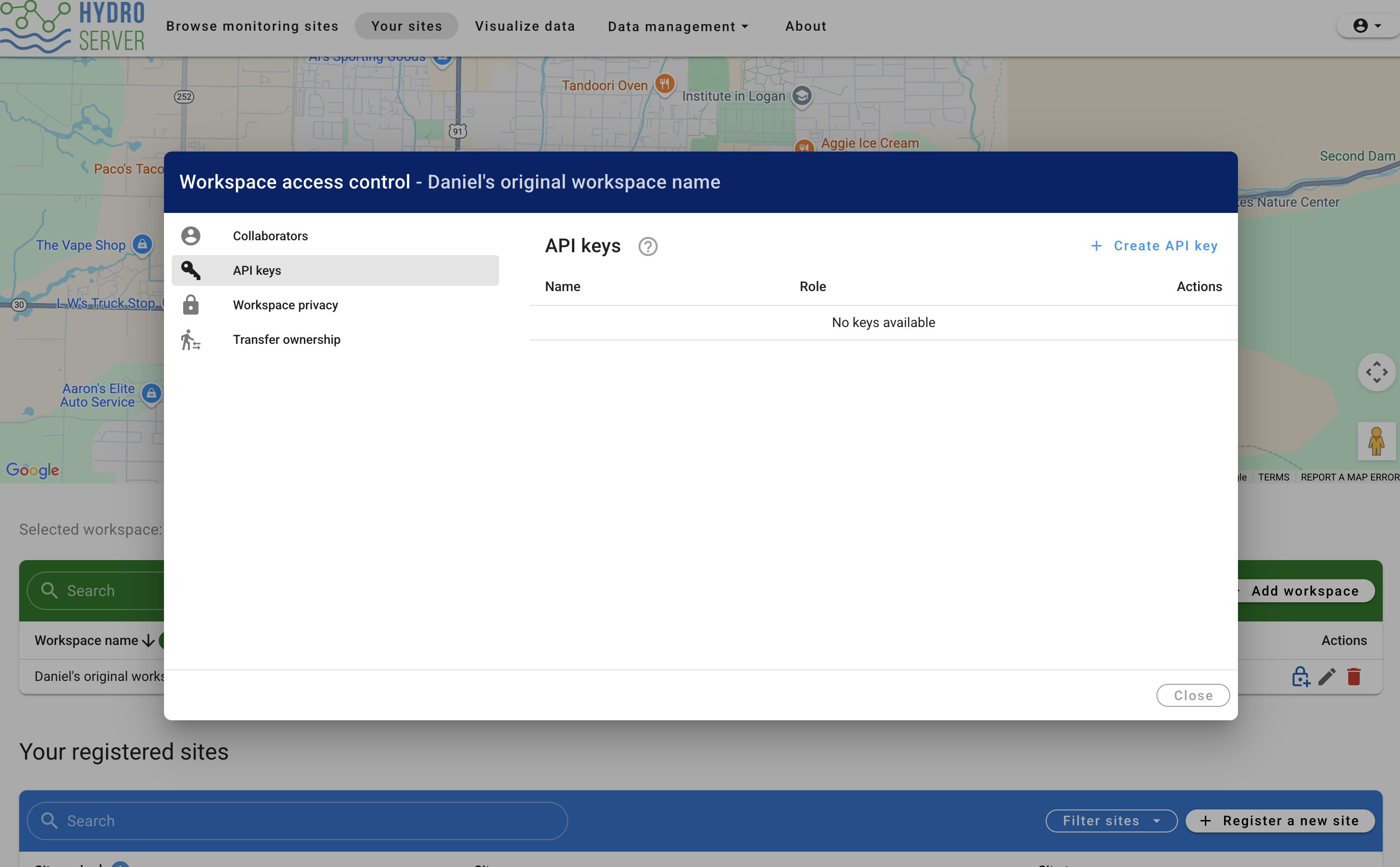
On the top right of the access control modal, click the 'create API key' button and fill out the form.
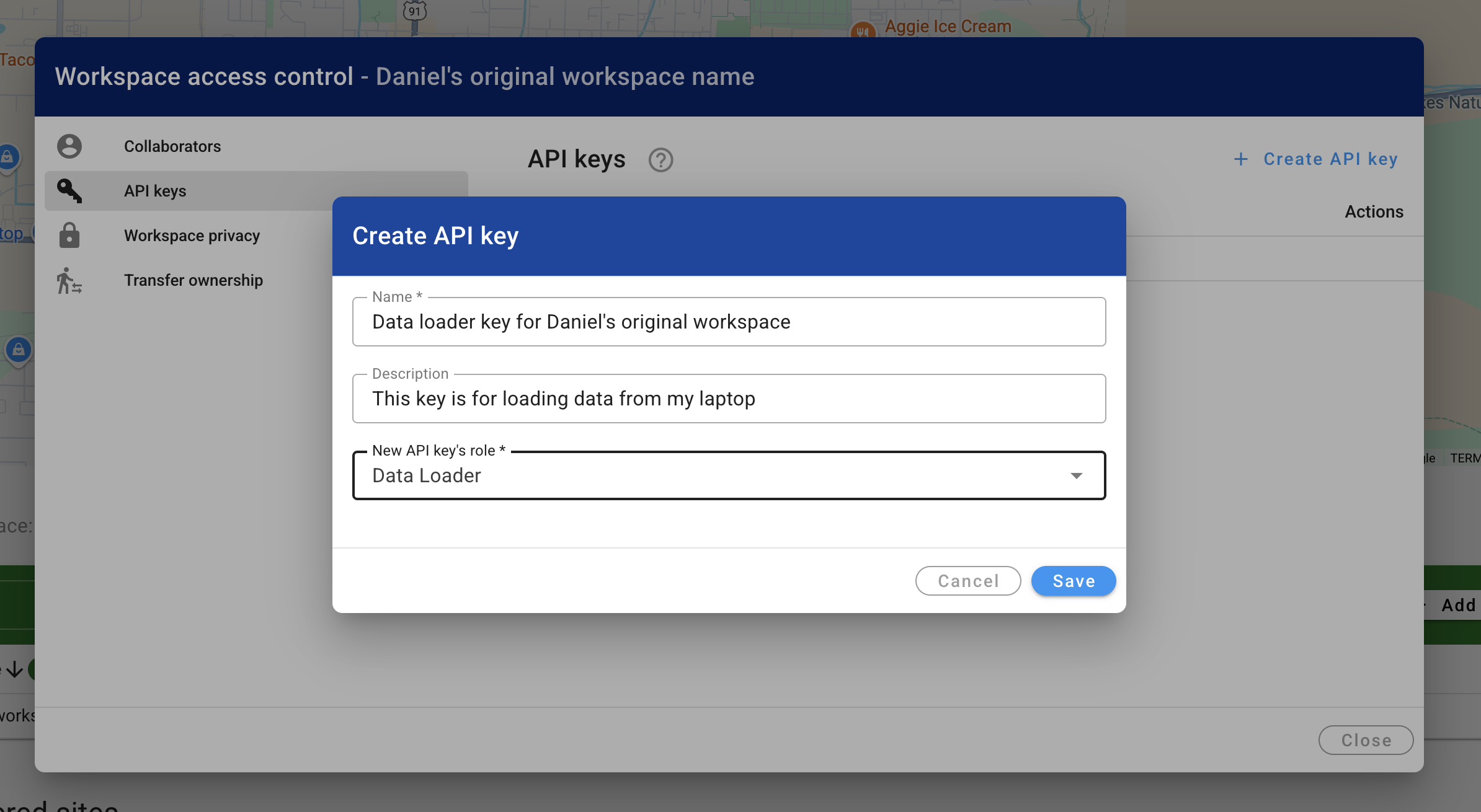
Notice I've selected 'Data Loader' as the role for this API key. This role grants the holder of the key permission to push data into the datastreams of this workspace and nothing else. Handy if you eventually need to share keys with others.
As the form says, once you close the modal, the website will never show you this API key again. So store it somewhere safe. If you lose it, you can always come back to this modal and generate a new key to replace the lost one.
Copy the API key and paste it in the HydroServer API key field of the Streaming Data Loader form to authenticate. If authentication is successful, you'll be prompted to select the CSV file you wish to pull data from and the datastream you wish to push those data into. We'll handle that in the next step.